

Buying stages and personas are available to all teams. They’re in beta, marked New in the app, and details may change.
The Three Stages
Every prompt is at exactly one stage.
A list of the best products in a category stays at Consideration, even when it names products. Once the question is about one named product, or a head-to-head between two or three, it’s at Decision.
How Prompts Get a Stage
Automatic classification
Surfacd classifies every new prompt shortly after it’s added, however you add it: by hand, from a file, from suggestions, by copying to another country, or through the API or an AI assistant. It reads the prompt’s words alongside your brand, your marked competitors and your target audience, and picks the stage the person asking is most likely at. Classification usually takes a few minutes. Until it’s done, a new prompt shows Consideration.Correcting a stage
If a prompt’s stage looks wrong, change it on the Prompts page:1
Find the prompt
Open Prompts. The Buying stage column shows each prompt’s stage. If it’s hidden, turn it on with the table settings button beside the search box.
2
Pick the right stage
Click the prompt’s stage and choose another from the menu. Each option says what the stage means.
A prompt’s answers are reported under its current stage, so changing a stage moves the prompt’s history to the new stage too. Changing a stage doesn’t use credits or count towards your prompt limit.
Filtering and Breaking Down by Stage
- Filter: the filter bar has a Buying stage filter. It sits in the bar while there’s room, or under the + menu. Pick one or more stages to see results for just those prompts. Like other filters, it carries across pages, can be kept in a saved filter and applies to exports.
- Prompts: group the table By buying stage to see your prompts from awareness to decision, with each stage’s numbers. Exporting the prompts list adds a Buying stage column with each prompt’s stage, so you can sort or pivot the file by stage.
- Visibility › Overview: choose Buying stages in the Compare menu to rank you at each stage, or pick Buying stages as the rows or columns of the Breakdown.
- Details: select a stage anywhere it’s listed to open its details. The details of a brand, platform, topic, country or cited site also break down by buying stage, and a prompt’s details show its stage.
The Buying Journey
The Buying journey section on Visibility › Overview shows how visible you are at each stage, for your Baseline and for each persona.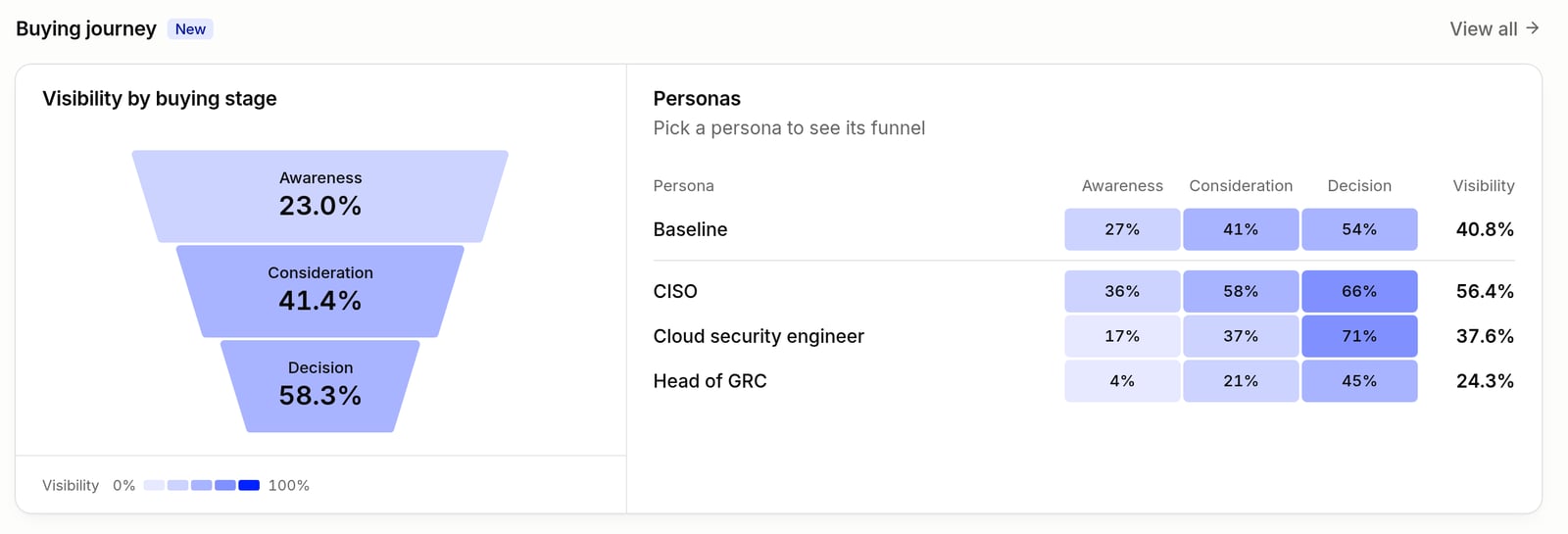
Visibility › Overview › Buying journey: your funnel on the left, each persona by stage on the right
- A stage with no prompts shows No prompts, and one with prompts but no answers in the dates shows No answers yet. Both stay in the funnel, greyed out.
- Each tier and cell is shaded by your visibility, in steps of 20 points: the deeper the shade, the more visible you are. The key under the funnel runs from 0% to 100%.
Personas by stage
On Visibility › Personas, the Persona breakdown compares each persona at each buying stage by default. It’s the quickest way to see where one buyer drops off: a persona that AI recommends you to at Decision but not at Awareness may not find you until it already knows your name.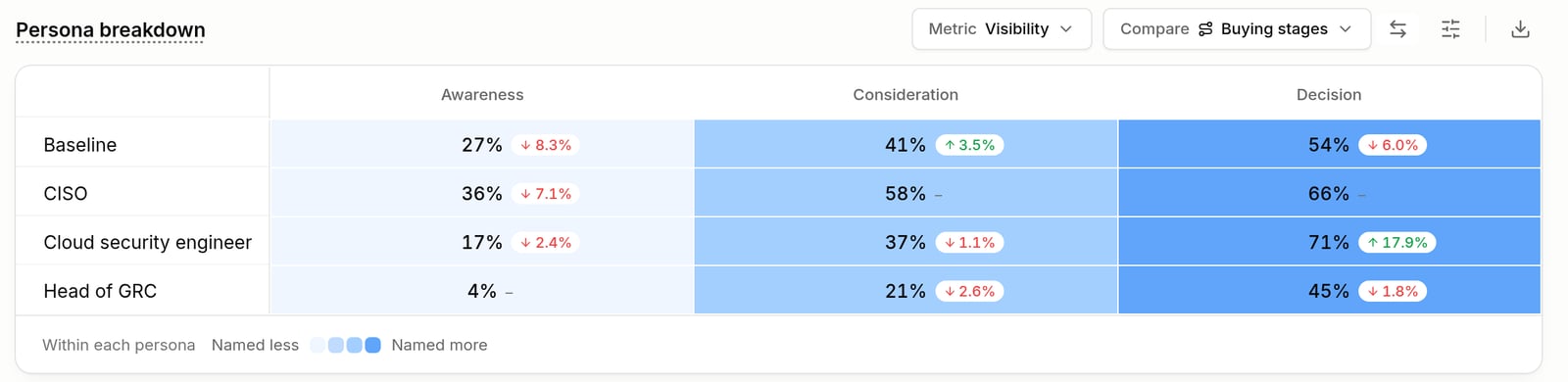
Visibility › Personas › Persona breakdown, comparing buying stages
Tips
- Cover every stage. If a stage has only a handful of prompts, its numbers move a lot from one run to the next. Aim for a similar number of prompts at each stage. Group the Prompts page By buying stage to check.
- Fix stages that matter. Correct the prompts whose stage changes how you read a report, such as a product comparison classified as Consideration. You don’t need to review every prompt.
- Read Decision with care. Decision prompts often name your brand, which makes you easier to find. Awareness and Consideration show whether AI recommends you before a buyer knows your name.
- Combine with personas. Ask your most important prompts as personas to see which buyers find you at which stage.
API & MCP
- Report queries:
buying_stageis ascopefield on every Reports API entity, takingawareness,considerationanddecision, and a dimension on visibility, sources, narratives and queries. With the dimension indimensions,buying_stageinfilterspicks rows.GET /api/v1/projects/{project}/reports/values/buying_stagelists the three stages with their labels. - AI assistants (MCP):
run_reporttakes the samebuying_stagefield and dimension. See MCP for AI Assistants. - Prompts: every prompt from the API and from the MCP prompt tools (
list_prompts,get_prompt) includes itsbuying_stage(awareness,considerationordecision). A prompt and the prompts asking it as personas always share one stage. A new prompt showsconsiderationuntil it’s classified. - Changing a stage: send
buying_stagetoPATCH /api/v1/projects/{project}/prompts/{prompt}, or to the MCPupdate_prompttool. It works like picking the stage in the app: Surfacd won’t reclassify the prompt afterwards, and changing it on a persona prompt changes it for its whole family. It needs the same access as changing a stage in the app, so a read-only API key and viewers can’t do it.