

Personas and buying stages are available to all teams. They’re in beta, marked New in the app, and details may change.
Why Personas Matter
B2B purchases are rarely made by one person. A buying committee might include a finance lead who signs off, an IT lead who checks security, and the team who will use the product every day. Each of them asks AI their own questions, framed by their own role, company and priorities. Personas let you see:- Who AI recommends you to. You might lead the shortlist for finance buyers but barely appear for technical evaluators.
- Where competitors win. A rival that trails you overall can still dominate with one persona.
- How much framing matters. Compare each persona against your Baseline to see whether stating who is asking helps or hurts you.
Key Concepts
You write each prompt once, plainly, and choose the personas to ask it as. Surfacd keeps asking the prompt as you wrote it, which is your Baseline, and also asks it once as each persona you pick. Personas belong to a project, so each project has its own set.
Getting Started
1
Add your personas
Open Manage Personas under Settings in the project sidebar and click Add personas. Fill in the form for one buyer: a name and at least one job title are required. See Adding a Persona.
2
Choose the prompts to ask as each persona
On the Prompts page, select prompts and choose Manage personas › Add personas. You can also pick Personas when you add new prompts. See Asking Prompts as Personas.
3
Compare your buyers
After the next data collection run, open Visibility and choose the Personas tab, or look at the Buying journey section on the Overview. See Comparing Personas.
Adding a Persona
On Manage Personas, click Add personas. A blank form opens, and you describe the buyer yourself. Surfacd doesn’t suggest personas or add any for you. Save the form with Add persona, then click Add personas again for the next one.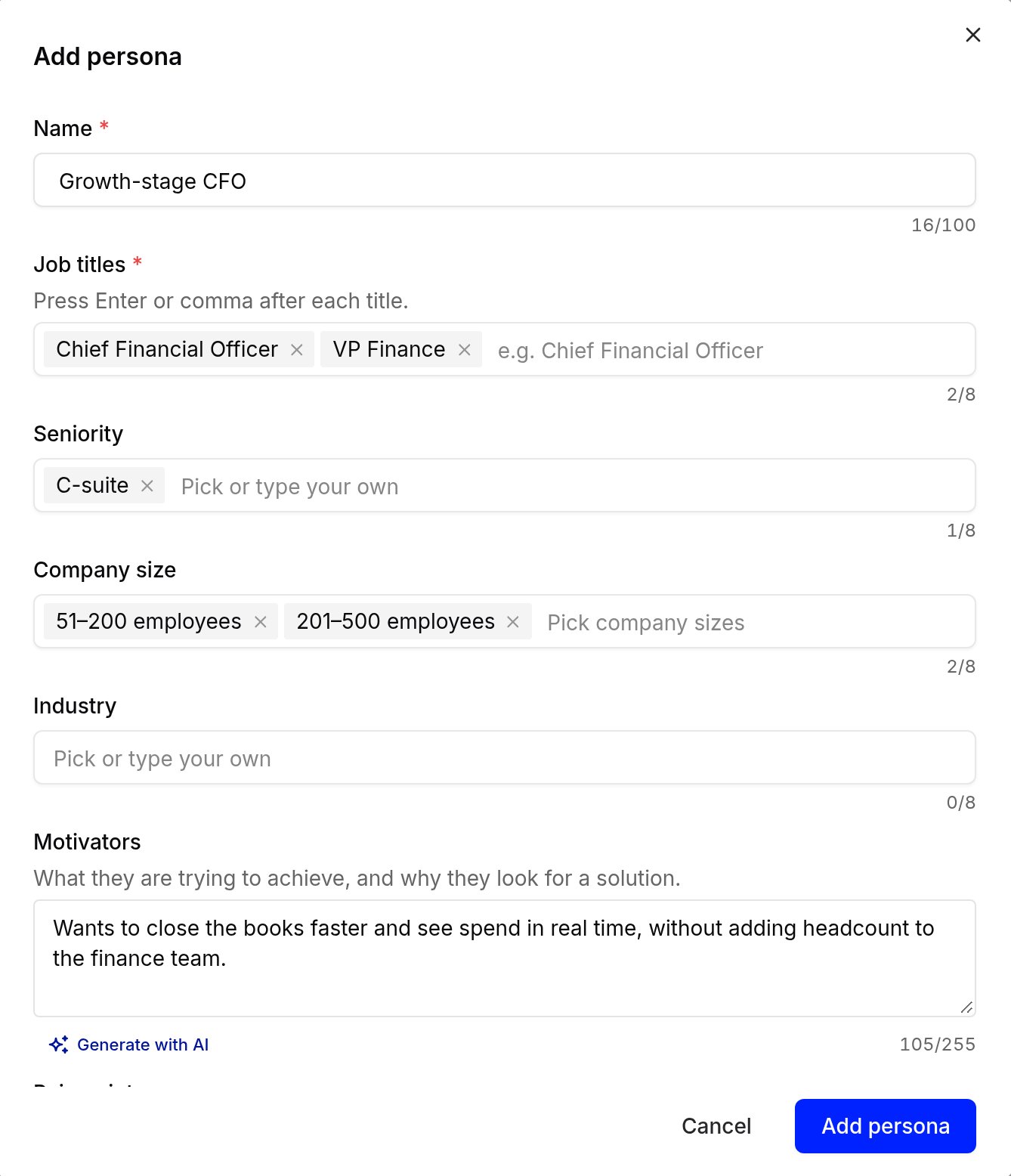
The Add persona form. The count under each field shows how much of its limit you've used.
Each field shows a count such as
105/255 under it, which turns red when the field is full.
Generate with AI
Not sure what to write for motivators or pain points? Once the form has a name and a job title, click Generate with AI under either field. Surfacd drafts one or two short sentences from the details you’ve entered and your brand. Generate with AI only drafts these two fields. It doesn’t create personas or fill in the rest of the form.- An empty field takes the draft straight away.
- If you’ve already written something, the draft appears below it. Choose Replace mine or Keep mine.
How a persona changes what AI is asked
When Surfacd asks a persona prompt, it puts that buyer’s perspective in front of your words, so AI knows who is asking. Surfacd writes that perspective from the persona’s details each time you save the persona. You don’t see or edit it, and your prompts always show your own words.
Write every prompt plainly, even one you’ll ask as personas. Don’t start it with “As a CFO…”: the persona’s perspective is added when it’s asked.
A prompt can be up to 475 characters. That leaves room for the whole perspective, so a persona prompt is always asked with the persona’s full perspective and your full prompt.
Managing Personas
Manage Personas lists every persona in the project, with its job titles, its profile and how many prompts are asked as it. The count beside Add personas shows how many of the project’s 10 personas you’ve used. Select a prompt count to open the Prompts page with just that persona’s prompts, grouped by persona.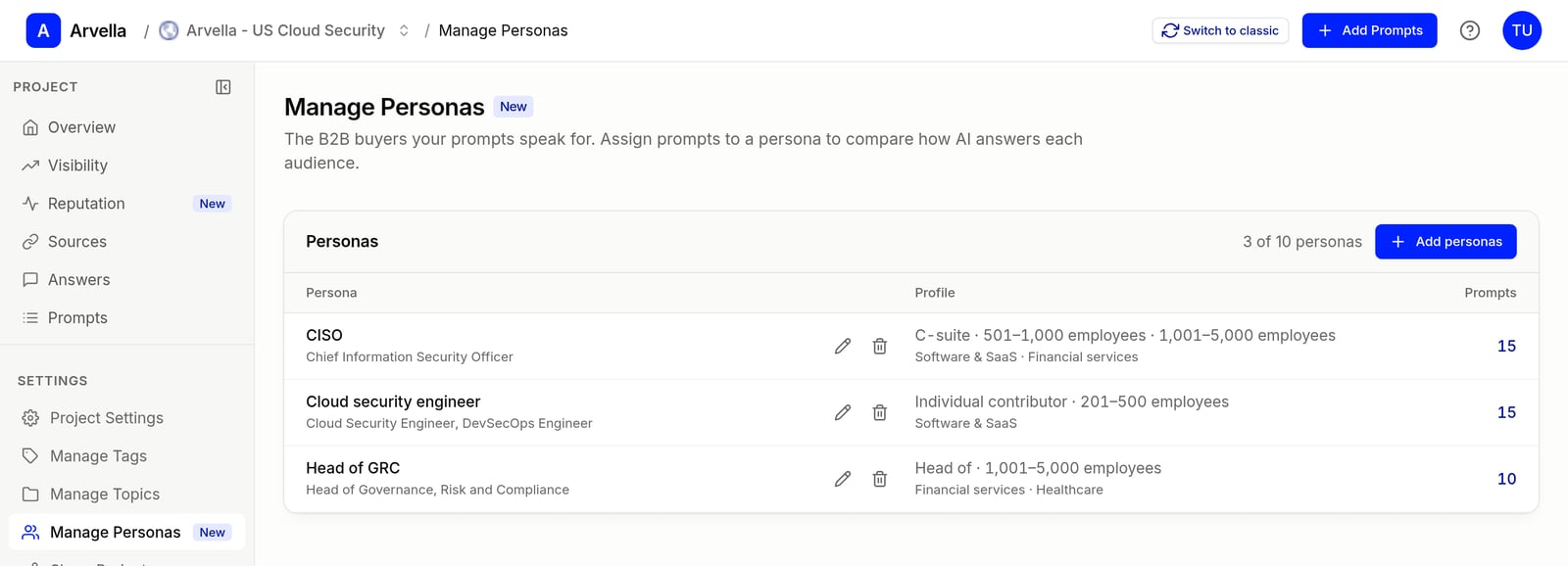
Manage Personas, under Settings in the project sidebar
- Edit: click a persona’s row, or its pencil icon, to change its name or details. Its prompts keep their words and their history, and are asked with the updated details from the next run.
- Delete: click the bin icon, then Delete persona and prompts (Delete persona if it has none). This deletes the persona and its persona prompts, and their answers leave every report. The prompts they were asked from are kept, and keep being asked as your Baseline. This can’t be undone.
A project can have up to 10 personas. When you reach the limit, Add personas is disabled: delete a persona to add another. Persona names must be unique within a project, ignoring letter case. Adding a persona with the name of one you deleted creates a new persona: the deleted one’s answers don’t come back.
Who can manage personas
What you can change depends on your team role. Owners can do everything.Asking Prompts as Personas
You choose which prompts each persona asks. Surfacd never asks your existing prompts as a persona automatically: the answers you’ve collected so far weren’t asked as any buyer, so they stay as your Baseline.Prompts you already track
On the Prompts page, select prompts, open Manage personas in the selection bar at the bottom of the page and pick the personas. The menu appears once the project has a persona, and you can select up to 100 prompts at a time.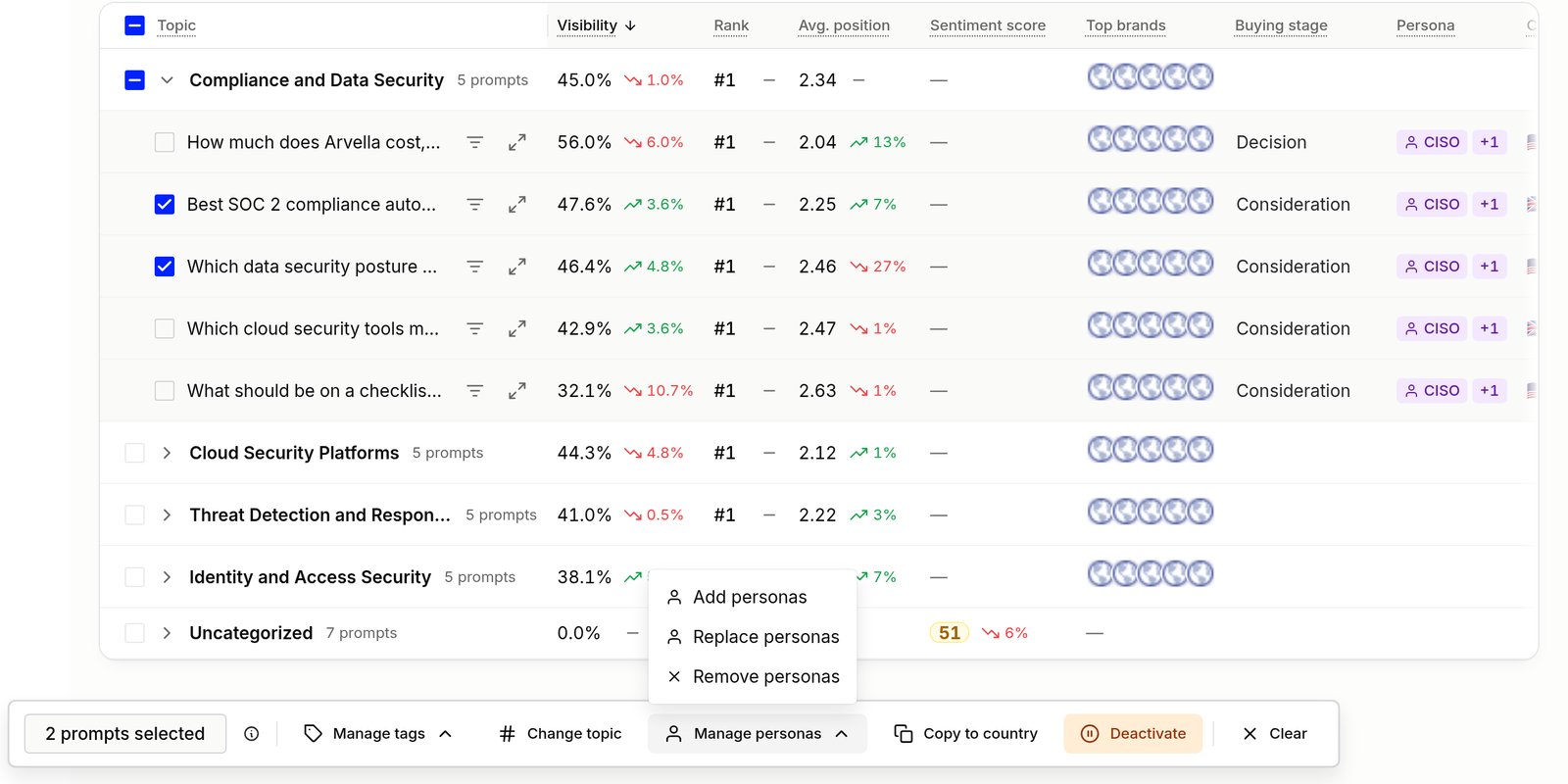
Select prompts, then choose Manage personas in the selection bar
Removing a persona from a prompt, by Remove personas, Replace personas or by deleting the persona prompt, deletes that persona prompt, and its answers leave every report. If you add the persona to the prompt again later, it starts with no history.
If adding or replacing personas would go over your prompt limit or your credits, nothing changes and the dialog tells you why.
New prompts
When you add prompts manually, pick one or more Personas. Each prompt is added once without a persona, as your Baseline, and once as each persona you picked. If a prompt is already tracked, Surfacd keeps it and asks it as the personas you picked too. The Personas field shows to team members who can manage personas. File import and suggested prompts always add prompts without a persona, and you can add personas to them afterwards.Seeing persona prompts
The Prompts page keeps a prompt and its persona prompts together:- As a list, or by topic, country or buying stage, each prompt shows once, with the personas it’s asked as in the Persona column. Its numbers include every answer, asked as written and as each persona. Filter by a persona to see only that persona’s answers.
- By persona, each persona lists its own prompts, with their own numbers. The Baseline is listed first.
- Open a prompt and choose the Personas tab to compare how it does as your Baseline and as each persona.
- Export the prompts list to get each prompt and each of its persona prompts on a row of its own, with a Persona column (“No persona” for the prompt as written), a Buying stage column and each row’s own numbers. The rows of a prompt add up to its answers and mentions on the page, so you can pivot the spreadsheet by persona.
Prompt Limits and Credits
Every persona prompt is a prompt of its own. Surfacd checks and charges for it exactly as it does for any prompt:- Prompt limit: each active persona prompt counts as one prompt towards the project’s prompt limit.
- Credits: each active persona prompt is checked on every platform in every run, so it uses credits like any prompt. See How Credits Work.
- Before anything changes, Surfacd counts the persona prompts a request would add. If they would take the project over its prompt limit, or need more credits than your team has available, nothing is added and you see why.
Worked example
You track 20 prompts on 4 platforms (1 credit each), checked weekly. You ask all 20 as 3 personas:
Asking those prompts as personas quadruples the project’s prompts and its credits. On a daily schedule the monthly reservation would grow from 2,400 to 9,600 credits.
Comparing Personas
Once a persona has asked prompts, the new version compares your buyers side by side.Visibility › Personas
The Personas tab on Visibility shows your visibility for the Baseline and each persona over time, ranks them with the Baseline pinned first as the reference, and shows the brands AI names most for each.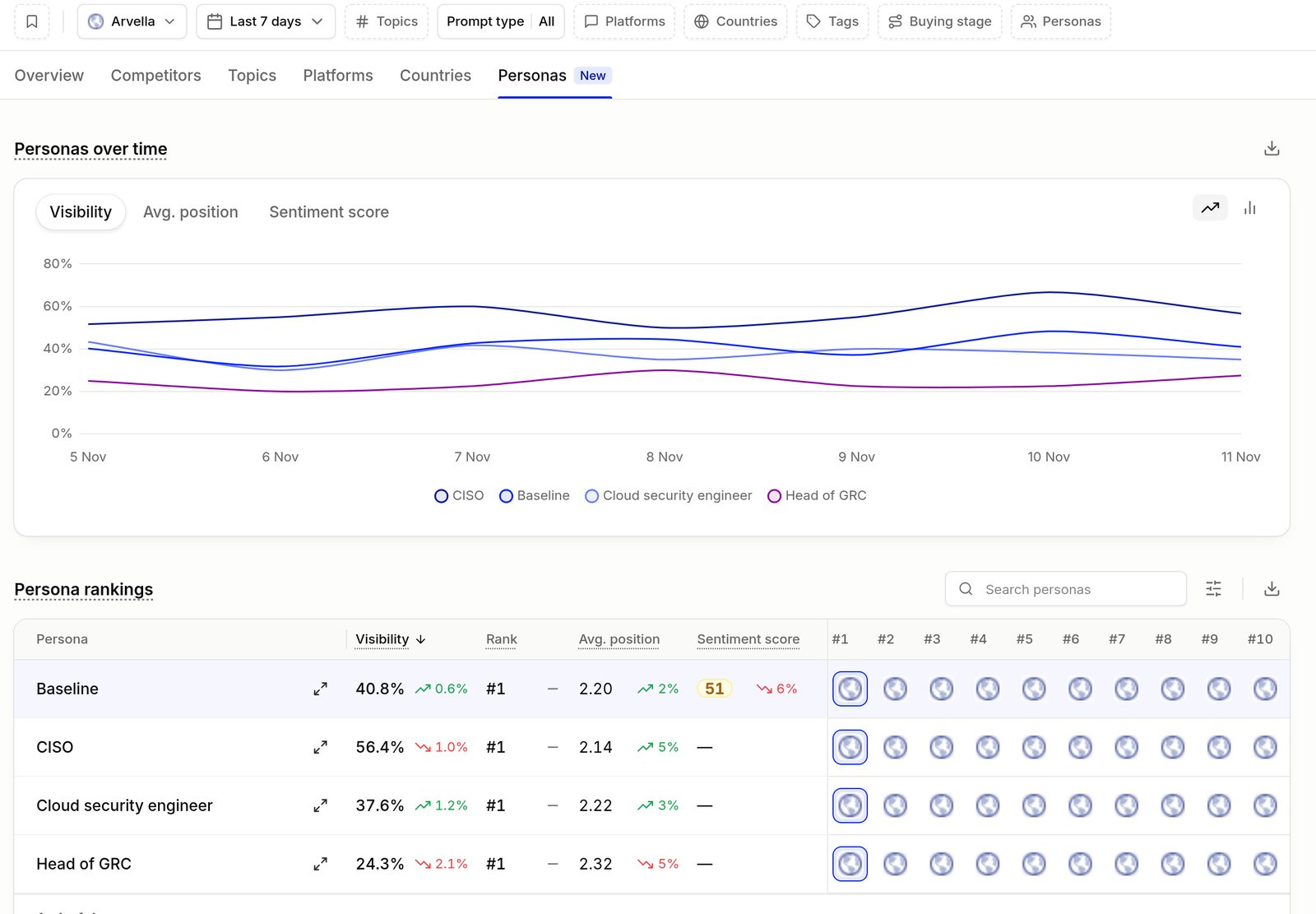
Visibility › Personas: each persona over time and ranked, with the Baseline first
Elsewhere in the app
- Visibility › Overview › Buying journey shows your visibility at each buying stage as a funnel, and each persona’s visibility at awareness, consideration and decision beside it. See The Buying Journey.
- Visibility › Overview: choose Personas in the Compare menu to rank you as each persona asks, or pick Personas as the rows or columns of the Breakdown.
- Prompts: choose By persona to group your prompts under each persona, with the Baseline first.
- Details: select a persona anywhere it’s listed to open its details: its visibility over time, and how it breaks down by brand, platform, topic and prompt. The details of a brand, platform, topic, country or cited site also have a Personas tab.
Filtering by persona
Once your project has a persona, the filter bar includes a Personas filter. It applies to Overview, Visibility, Answers, Sources, Prompts and Reputation. Select one or more personas to see results for just those buyers, or select Baseline to see only the prompts asked without a persona. A persona that hasn’t asked any prompts yet shows as “No prompts yet” and can’t be selected. Like other filters, your persona selection carries across pages, can be kept in a saved filter and applies to exports.Personas, Topics and Tags
Personas sit alongside topics and tags, but they do a different job. Topics and tags describe what a prompt is about. A persona describes who is asking, and changes what AI is asked.
See Topics & Tags for more on organising your prompts.
Tips for Adding Personas
Start with the buyers who decide
Begin with the people who sign off or shortlist, such as the budget holder and the technical evaluator. Add others once you’ve seen how these two compare with your Baseline.
Keep it to two to four
Each persona adds a prompt for every prompt it asks, so a few well-chosen personas tell you more than ten thin ones. You can have up to 10 per project.
Read everything against the Baseline
The Baseline is how AI answers when it doesn’t know who’s asking. A persona is only interesting where it differs from it, so compare each persona with the Baseline rather than with each other.
Write prompts plainly
Surfacd adds the buyer’s perspective when it asks a persona prompt, so leave “As a CFO…” out of the prompt itself. Otherwise your Baseline asks as a CFO too.
Start with a subset of prompts
Add personas to the 10 to 20 prompts that matter most, such as those closest to a purchase, rather than to every prompt. Expand once you know the cost and the value.
Keep profiles current
Update motivators and pain points when your positioning or target customer changes. Persona prompts pick up the change from the next run.
Persona prompts take effect from the next data collection run. Give each persona a few runs before you draw conclusions, as with any new prompt.
API & MCP
Personas are available through the API and to connected AI assistants as well as in the app. The API and MCP call the Baselineno_persona, labelled “No persona”, so use no_persona wherever the app says Baseline.
- Manage personas (API): list, create, read, update and delete a project’s personas. The same limits apply as in the app: a name (100 characters) and at least one job title are required, lists take up to 8 items,
motivatorsandpain_pointstake up to 255 characters, and a project can have up to 10 personas. Deleting a persona deletes its persona prompts too, and their answers leave every report. - Prompts: every prompt includes its
persona(UUID and name, ornullfor a Baseline prompt), and a persona prompt includessource_prompt_uuid, the prompt it asks as a persona. When you create a prompt, listpersonas(UUIDs or names, ignoring letter case) to ask it as each of them too: the prompt is created without a persona, plus one prompt per persona, and they all count towards your prompt limit and credits. Sending a prompt you already track adds the personas to it. A prompt’s own persona can’t be changed afterwards, but you can change the personas it’s asked as (see below). A persona prompt has no status of its own: setting itsstatusis refused with a 422, andDELETE /api/v1/projects/{project}/prompts/{prompt}deletes it even while it’s active, which removes that persona from the prompt. Other prompts must be inactive before they can be deleted. Changing a persona prompt’s topic or tags changes them for its whole family, as in the app. Adding personas needs the same access as managing personas, so a read-only API key can’t do it. - See and change the personas one prompt is asked as: a prompt without a persona includes
persona_prompts, its persona prompts with each one’suuidandpersona(UUID and name), ordered by persona name; it’s empty when the prompt is asked as no persona andnullon a persona prompt.PATCH /api/v1/projects/{project}/prompts/{prompt}takesadd_personasandremove_personas(persona UUIDs or names) to change them, alongsidetopic,buying_stageandstatus. There is no replace: remove some personas and add others in the same request. Sending a persona prompt’s UUID changes its family, but a persona prompt can’t remove its own persona: delete it instead. Every field is checked before anything changes, and nothing changes when the personas added don’t fit your prompt limit or credits. Only an active prompt can be asked as personas, so activate a prompt in its own request first. - Add, replace or remove personas on many prompts:
PATCH /api/v1/projects/{project}/prompts/personastakes anaction(add,replaceorremove), up to 100 prompt UUIDs inpromptsand persona UUIDs or names inpersonas, and works like the bulk actions on the Prompts page. Selecting a persona prompt selects the prompt it asks. Removing deletes the persona prompts, and replacing deletes the ones it drops; their answers leave every report. Adding and replacing change nothing if the prompts don’t fit your prompt limit or credits. The response lists every prompt of the prompts you changed, with their remaining persona prompts. - Filter reports: report queries take
persona_uuid(persona UUIDs, orno_personafor the Baseline) andpersona(names) inscope, and group by thepersonadimension on visibility and sources. The older reporting endpoints and the MCP report tools take apersonasfilter with the same values. - Compare and explain: matrix analysis accepts
personaas a row or column dimension, and the “why did visibility change?” breakdown includes personas alongside platforms, countries and topics once the project has personas. - AI assistants (MCP): the
list_personastool lets an assistant see your personas before it filters or compares by them, or creates prompts asked as them (personasoncreate_prompts).create_persona,update_personaanddelete_personamanage personas, andbulk_update_prompt_personasadds, replaces or removes them on prompts you already track.update_prompttakesadd_personasandremove_personasfor one prompt, andget_promptandlist_promptsshowpersona_prompts.delete_promptdeletes a single persona prompt, even while it’s active. Deleting a persona, or removing it from prompts, deletes those persona prompts and their answers, so assistants that ask before taking actions ask first.